How to connect Fitssey
TakeSlot needs two things from your Fitssey account: the studio UUID and an API key. It takes about two minutes.
- 1
Sign in to Fitssey
Open app.fitssey.com and sign in with an account that has administrator rights in your studio.
- 2
Open Studio settings
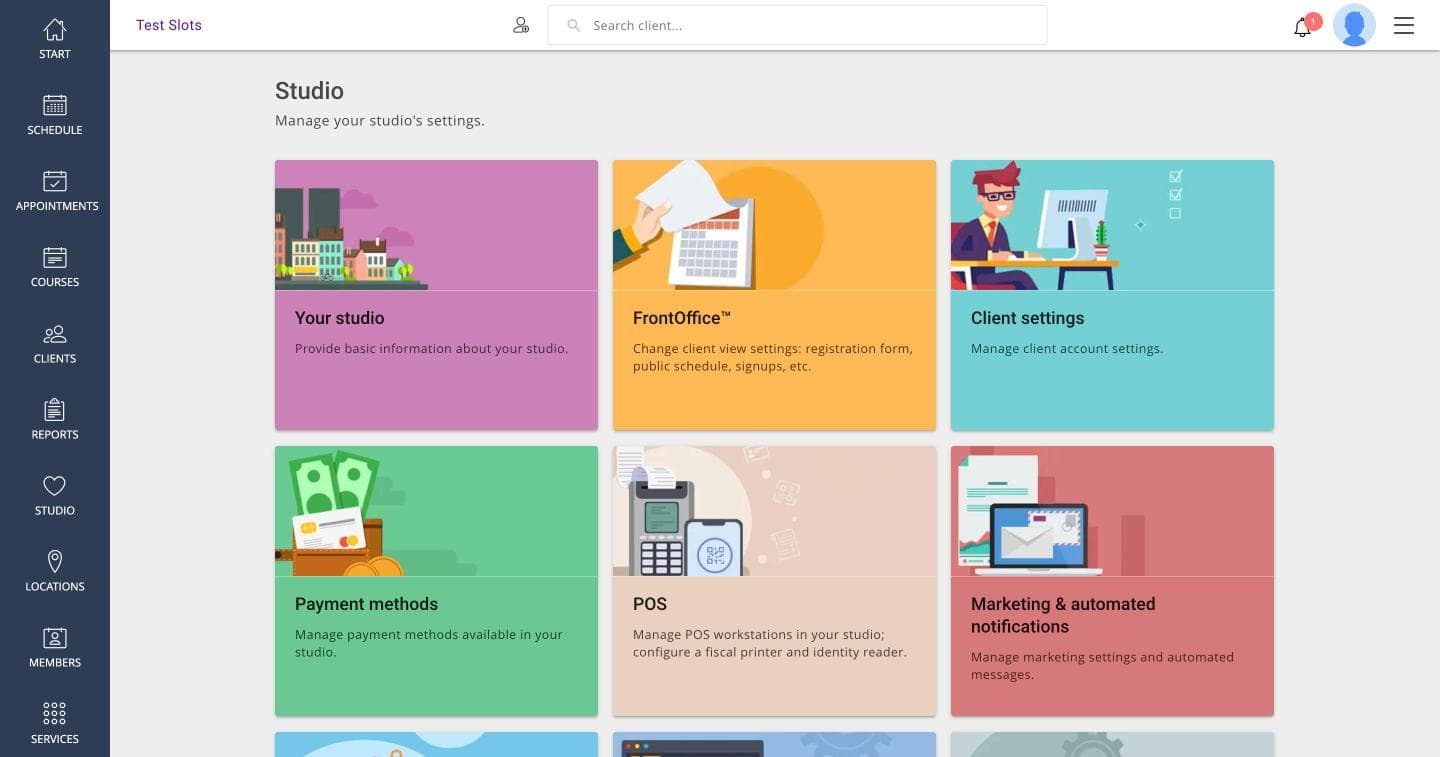
In the left sidebar click Studio, then open the Your studio card.
- 3
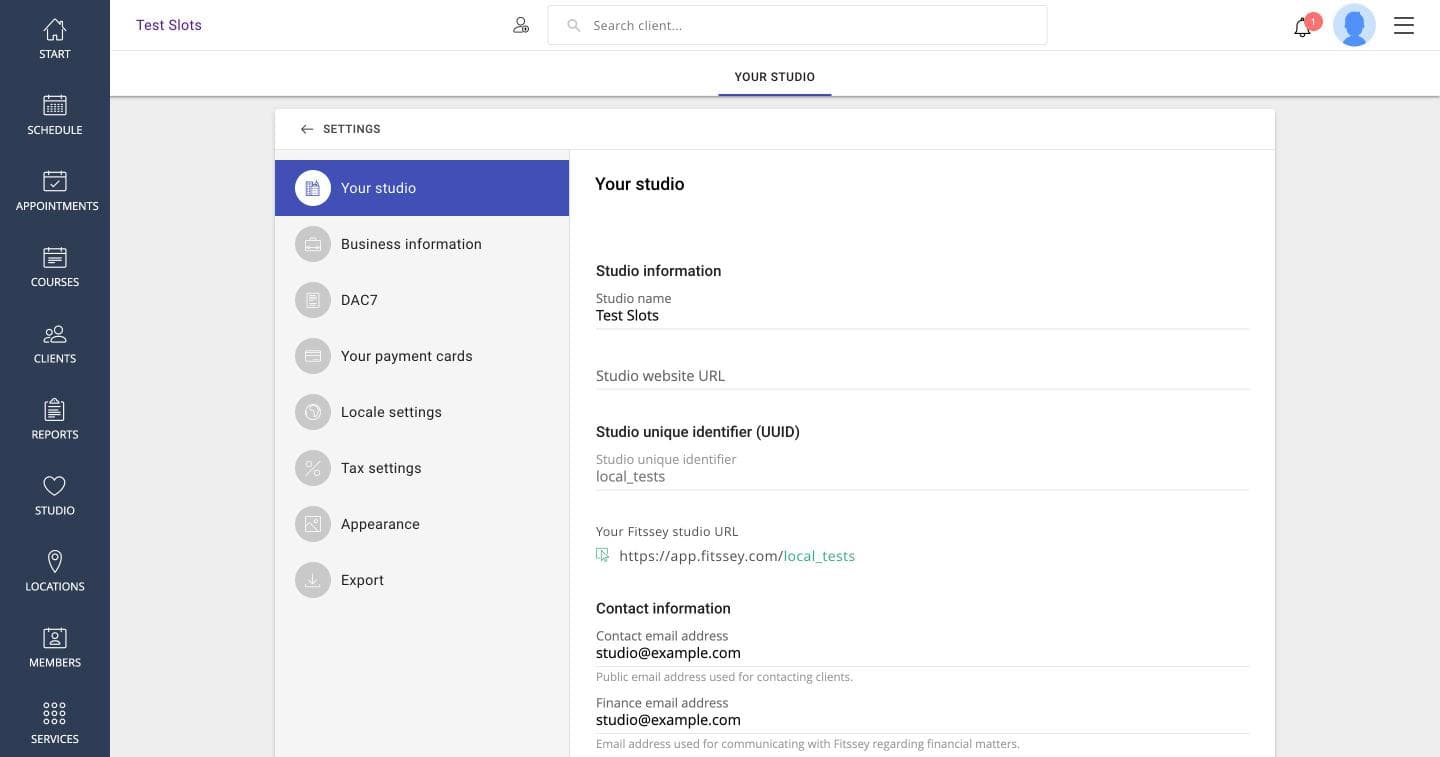
Copy the studio UUID
Copy the value under Studio unique identifier. It is the short name from your Fitssey address, not a long UUID — you can also paste the whole address and we will find it.
- 4
Open Integrations
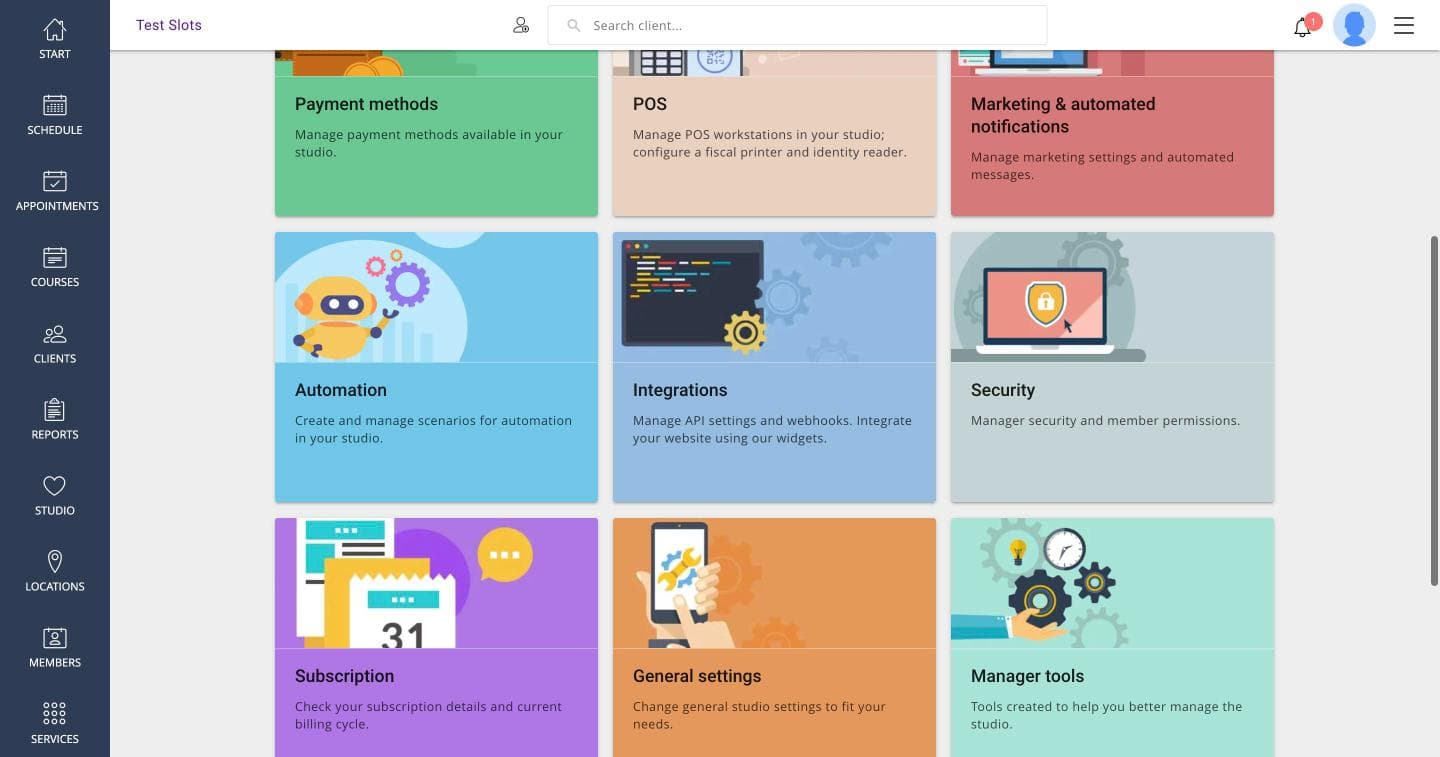
Go back to Studio settings, scroll down and open the Integrations card.
- 5
Add an API credential
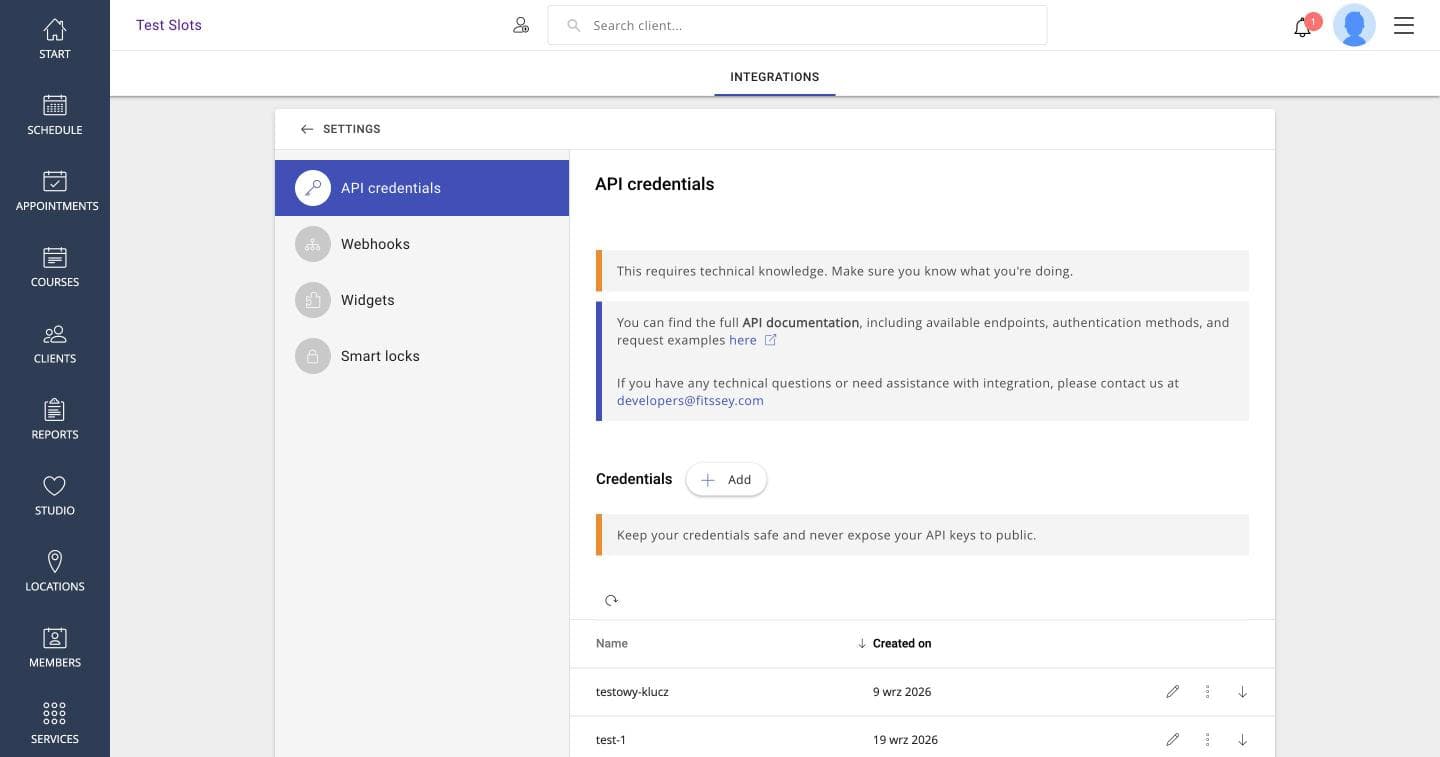
On the API credentials tab press Add.
- 6
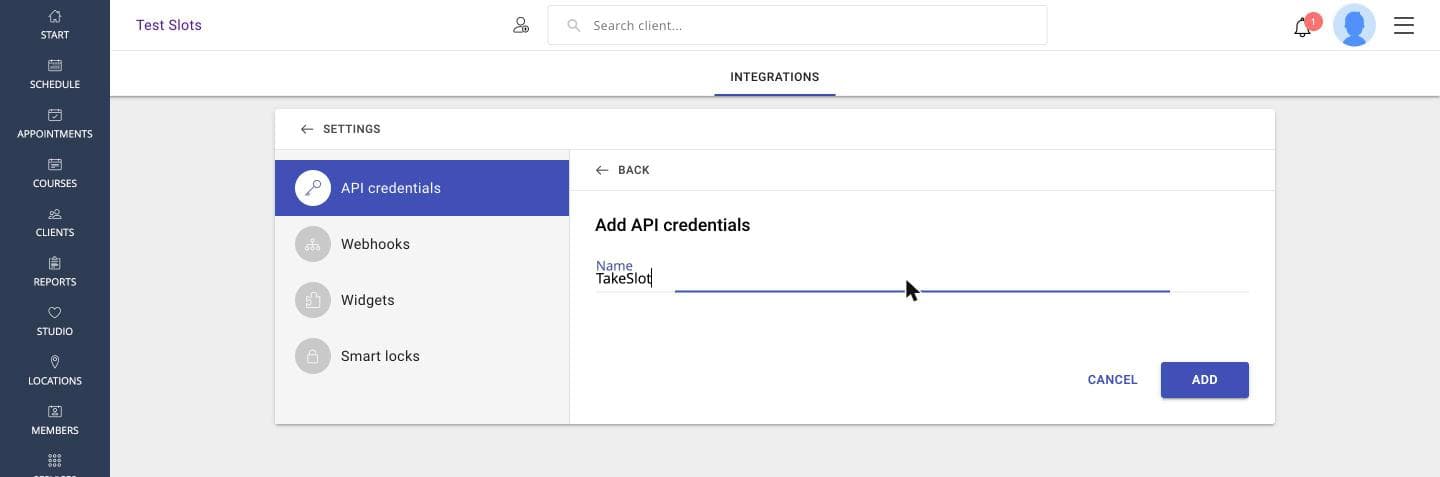
Name the key
Type a name you will recognise, for example TakeSlot, and press ADD.
- 7
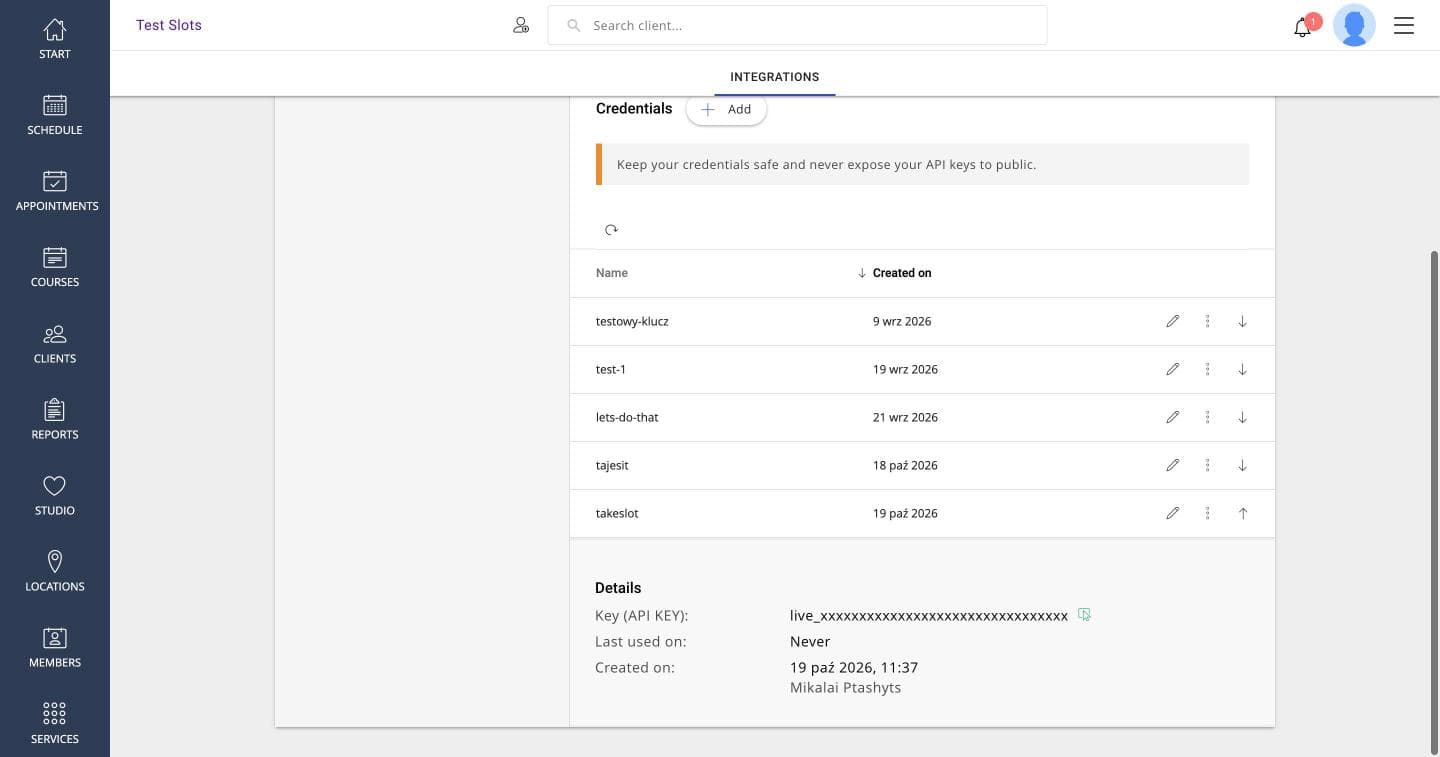
Reveal and copy the key
The key is not shown straight away. Expand the new row with the arrow on the right, then copy the value next to Key (API KEY).
- 8
Paste both into TakeSlot
Go back to the registration form and paste the UUID and the key. We check them right away and show the classes we found.
What we read
Group classes, instructors, rooms and free online spots. Fitssey classes have no price: you set the price and discount in TakeSlot.
What we write
Every booking made on TakeSlot is added to Fitssey as a visit, so the spot is taken in both systems. To protect your customers we send only their first name and a TakeSlot confirmation code — no surname, email or phone — so identify a guest by the code they show you (it is also in the visit's private notes).
Is it safe?
The key is stored encrypted on our server and is never shown again. You can revoke it in Fitssey at any time, and the integration simply stops.